
- Introduction
- CDN options
- Web Files options
- Email options
- Web Tools options
- Domain Names options
- Security options
- Logs & Stats options
- One Click Installs options
- Account Information panel
- FTP Status/Details panel
- Shared Hosting Issues
- How we normally set up an account
Introduction
Each web site/domain (e.g. derbyramblers.org.uk, surreyramblers.org.uk) has its own hosting account. And hence each has its own Hosting Control Panel (HCP).
Once you have joined Ramblers-webs.org.uk you will be sent details of your account. In particular you will be sent a password for the Hosting Control Panel. Please keep this safe and notify us if it is compromised.
Logging in
To access your account's HCP go to
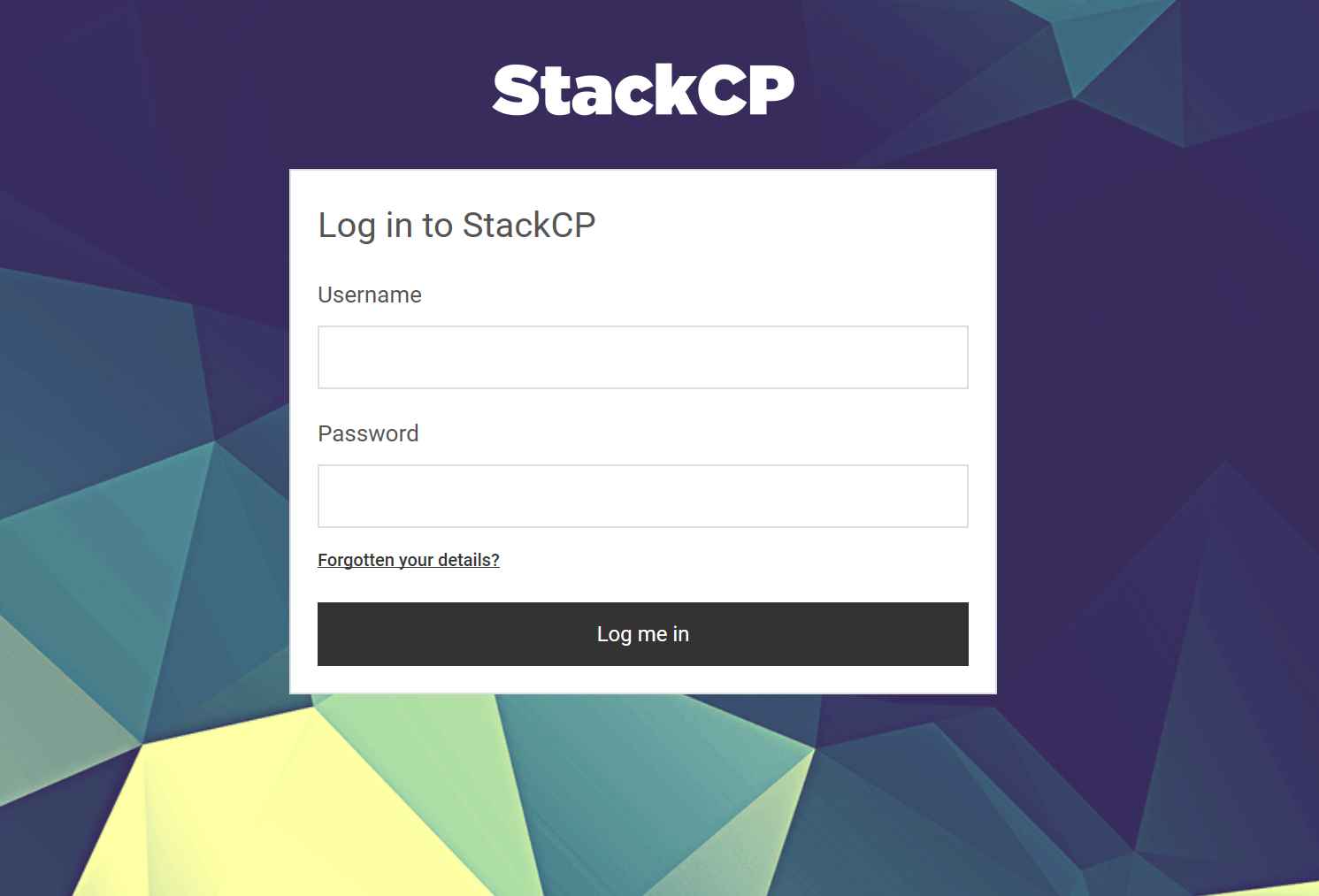
To login you need your email address and a password
If you have access to more than one HCP you will be prompted to select which one you wish to access.
If you forget your password or wish to change it then use the “Forgotten your details” link.
Note: you cannot have more than one HCP open at a time in the same browser
Note: if you copy and paste the password from an email be careful to only select the password as it is easy to include a line feed character from the end and your information will then be rejected.
Note: if you are using Joomla you may hardly ever need to access to the HCP.
Terms and Conditions
Our hosting company, Cloud Next, have Terms and Condition for the usage of their systems and you should make sure you comply with these. These can be seen at https://www.cloudnext.uk/legal/terms-and-conditions/
You should also review the Acceptable Use Policy which you should be able to access via the above link.
Backups
In particular we would highlight this clause:
You must not use the Hosting Services as an off site backup facility. Therefore, all files uploaded to our servers as part of your usage of the Hosting Services must be visible and accessible to the outside world (web-visible) unless they are needed to operate the website of which they form part; We reserve the right to delete files or directories that are not web-visible without giving notice to you.
Mail Lists/Emailing
You should also be aware of the usage limits for the various methods of using our hosts systems to send email:-
-
Webmail: 50 emails per day.
-
PC Software (such as Outlook): 500 messages per hour and 100 recipients per message.
-
Web Servers: Scripts running on the web servers are limited to 1000 emails per 12 hours.
Please note this statement from the host "We should like to take this opportunity to remind you that we have a zero tolerance policy on users sending unsolicited email, in the event that the systems deliberately used for this purpose, then we will be forced to suspend the user's account. "
Once Logged In
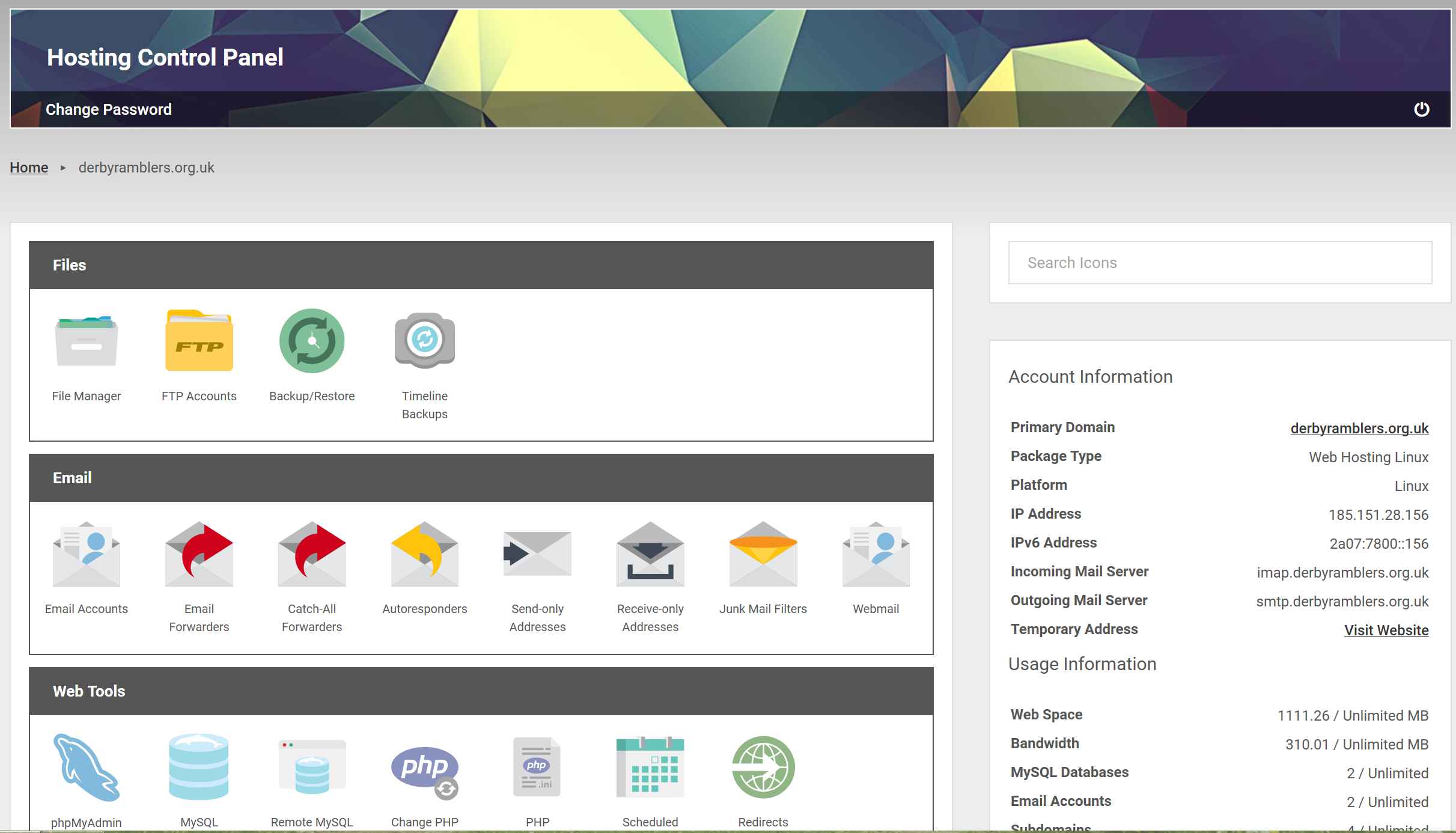
Once you are logged in there are a lots of options, many of which you will never use. The important ones are listed in the following sections
CDN options
This section is for optimising the performance of your web site and will be described elsewhere.
Web Files options
File Manager
Allows you to see all the files stored in your account. Files can be uploaded/downloaded, renamed, deleted. Zip files can be uploaded and unpacked.
All web site files must be stored in the folder public_html or ideally a sub folder.
We normally recommend you store your site in a sub folder of public_html, e.g. public_html/www01 where www indicates the sub-domain e.g. http://www.derbyramblers.org.uk and the 01 is the version number.
This allows you/us to set up a new version of your site without it getting mixed up with the production site. You can have a production site and a development one.
To associate the web site https://yourdomain.org.uk and the special sub domain https://www.yourdomain.org.uk with the correct folder can only be done by an Administrator. And you should not use the Sub Domain features to do this.
We store some files above the public_html folder, these are for monitoring the site and highlighting file changes
FTP Accounts
This option allows you to set up specific FTP accounts. Useful if you are updating your site using FTP.
You can use FTP to quickly upload/download files to the server. This is mainly used when you write your site by creating HTML files.
You can also find the main FTP details in the right hand column of the HCP. Note that you must unlock the FTP facility prior to using it. After a period of time it will become locked again.
Backups
The HCP allows access to backups of your account that are taken automatically by Cloud Next. These backup the file structure and also MySQL every 24 hours. To access these backups go to the Files section of the HCP and look at Timeline Backups.
If you are not using Joomla then you should decide if you need to take extra backups of your site.
Email options
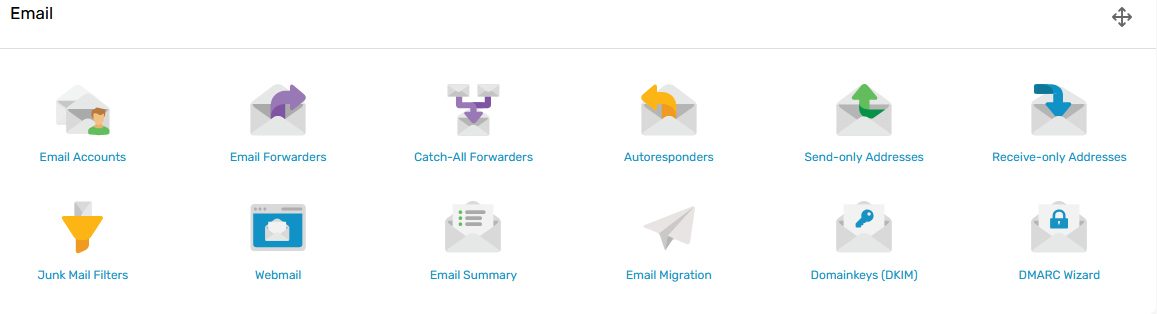
Email Accounts
This allows you to set up mailboxes for any particular email address of the form
These mail boxes can be accessed in two ways
- via a web browser at https://www.stackmail.com
- using an Email client such as Outlook, Thunderbird, see http://en.wikipedia.org/wiki/Email_client
See below on what values you need to use in your email client Outlook, Thunderbird etc.
If you have set up an email account via the HCP for your domain then you may wish to look at the Junk settings.
The default Junk Mail Filters is set to High. This will flag many valid emails as Junk and put them into the Junk folder.
I would suggest you use the Low setting and then increase it if you get too many spam emails.
Either way look in the Junk folder to see if any valid emails are there.
How to set up your email client to access a mailbox
The following are the settings you require to access a mailbox on yourdomain.org.uk (replace yourdomain.org.uk with the correct text)
You may use either pop3 or imap for incoming mail. IMAP is recommended
There are two ways of accessing Mailboxes, either with plain text password or more securely with SSL
Username
Server: mail.yourdomain.org.uk or mail.stackmail.com
If you have any issues with site certificates you should use the server mail.stackmail.com
| SSL Connection |
Non SSL connection
|
|||||
| SSL Port | Connection security |
Authentication method |
Non SSL Port | Connection security |
Authentication method |
|
| IMAP | 993 | SSL/TLS | Normal or encrypted password |
143 | None | Normal Password |
| POP3 | 995 | SSL/TLS | Normal or encrypted password |
110 | None | Normal Password |
| SMTP | 465 | SSL/TLS | Normal or encrypted password |
25 or 587 | None | Normal Password |
Replace the items with the correct values for you domain / email account.
- yourdomain.org.uk - Your domain name
This email address is being protected from spambots. You need JavaScript enabled to view it. - Your email account/mailbox
Email Forwarders
We no longer recommend using Email forwarding as it is unreliable, see article
allows you to get emails like
If you wish to create a mail list to your members we recommend you look at facilities like
-
MailChimp, www.mailchimp.com.
-
Google+ Communities
Catch all forwarders
This allows you to set up a default so that emails to
Junk Mail Filters
If you have set up an email account via the HCP for your domain then you may wish to look at the Junk settings.
The default Junk Mail Filters is defaulted to High. This will flag many valid emails as Junk and put them into the Junk folder.
I would suggest you use the Low setting and then increase it if you get too many spam emails.
Either way look in the Junk folder to see if any valid emails are there.
DKIM & DMARC
These are are email authentication methods used to prevent spam and are already configured on most of our domains. You can check whether these settings are in place here.
Web Tools options
MySQL Databases
Joomla and WordPress use MySQL databases. We also use MySQL databases for recording the file structure on your account, so we can monitor changes to files.
This is for advanced users only.
- You can setup new database and manage existing ones.
- You can view/edit the contents of a database
Reference MySql https://www.mysql.com/
Reference PHP Admin (used to manage the SQL databases) https://www.phpmyadmin.net/
Change PHP Version
This option allows you to change the version of PHP used across your whole account. This option updates the .htaccess file in the root folder.
Scheduled Tasks
We use scheduled tasks to run web monitoring software every 24 hours. For Joomla sites we also run a scheduled task to backup each site once a week. This runs a script called monitor/hashscan.php
Domain Names options
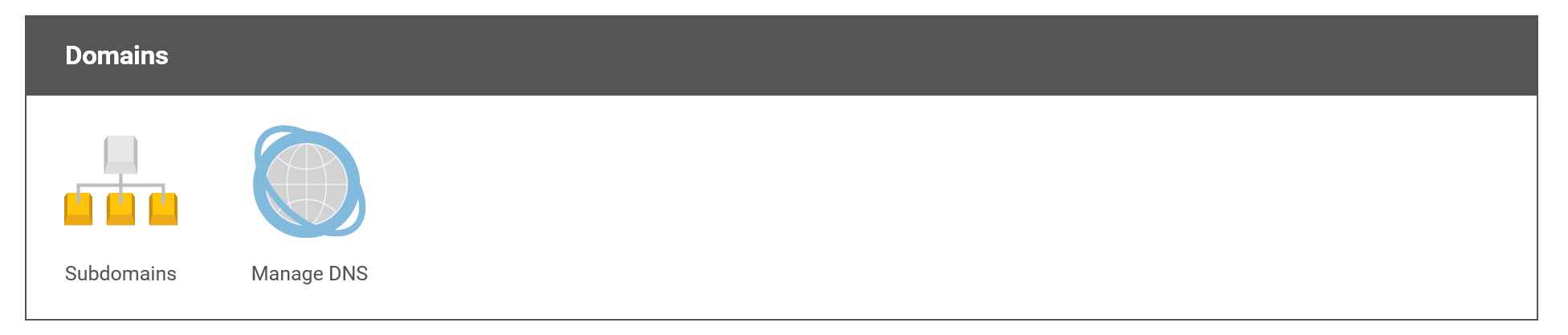
Sub Domains
allows you associate a folder with a sub domain This allows you to have other web sites/sub-domains such as http://nextprogramme.yourdomain.org.uk
e.g. You associate the sub domain new with the folder public_html/www02. to give you the web site https://new.yourdomain.org.uk
Please note that Sub domain settings can take a few hours to take affect. We have also found that changing the folder name does not always work and the best method is to delete the sub domain and the recreate it with the new folder name.
The default web site www (e.g. www.derbyramblers org.uk and derbyramblers.org.uk) both point to the same folder. The folder CANNOT be defined via the HCP. Only the administrators can set this for you via the overal Cloud Next account. Please raise a Support Ticket.
Sub domains WILL NOT work if your domain name has not been transferred to our servers. You can still prepare them ready for when the domain is transferred.
To access them you will need to use the temporary address, so for the new example above you would need to use the URL
https://yourdomain-org-uk.stackstaging.com/www02
where you use the folder name after the temporary site URL
Manage DNS
if your domain has been transferred to our servers then you will see a Manage DNS. This option allows DNS Management and should not be used without consulting the Ramblers-webs administrators.
Security options
Logs & Stats options
Web site usage statistics
It is very useful to understand who is using your web site and how they are finding it. To do this you need some method of collecting and viewing usage statistics for your site
There are a number of ways to find out how much your site is used.
- Many sites in the past had a simple counter on the home page that told the number of visits, simple but not well thought of now and it gives little information.
- The server hosting your web site keeps log files that record every access to files, images etc. In the Hosting Control Panel there are a couple of options to view this information. See under Logs & Stats.
- Probably one of the best usage monitors is custom code on each page that records visitors, one of the best known of these is Google Analytics, see Usage Statistics
One Click Installs options
The panel lists various software that you could install. We are unable to provide support for these systems so please think carefully about installing any of these and if you are happy to support ourself.
Account Information panel
In the right hand column you will see information about your domain.
Temporary Address – Transferring your Domain to us
If you already have a domain name and are transferring it to us then you will need to set up your site on our host prior to the domain being transferred to us.
Your site will have a temporary address. The public_html folder's temporary address is given in this panel.
To access a particular folder append it to the end of that address.
Once you have your new account ready to become live, please contact the Administrators via a Support Ticket.
Please don't change the DNS pointers on your domain to our servers, while this may work it is better to transfer the domain. One advantage is that the renewal and costs are taken care of by London.
FTP Status/Details panel
The panel shows you the status of the FTP (locked or unlocked and the settings you will need to access the server files using FTP.
Shared Hosting Issues
Since we are on a shared hosting platform, other sites are also run by the same servers.
As with any hosting platform the web sites can come under attack from hackers and such.
Both of these can result in service issues on our web sites. Here is a typical description of how our hosting company handles these service issues/errors: -
Our engineers have advised that this error generally means that the server has come under a huge amount of load very suddenly, possibly as the result of a malicious attack, or an error that has caused a lot of processes to run on a site. When this happens the server can sometimes overload and crash, which would mean we would have to reboot it completely and start up all of the services again. This can take anything up to an hour in some cases.
Instead of this happening, we use this system which cuts off access for a minute or two in order to give the server a moment to clear the load and run smoothly again. While I can understand the inconvenience of the server not responding for a few minutes, it is certainly a preferable option to it going completely offline for upwards of an hour.
Apologies for the inconvenience again, every time this error is shown though it does also alert our admin team, who can address situations on servers where this is happening a lot. They will have a look at the server and help to reduce its load, after which they will investigate any possibilities that might help prevent the same issue from occurring again
How we normally set up an account
This section describes how the Ramblers-Webs administrators normally set up an account. This is done for an account where the web-master has elected to use our implementation of Joomla. The settings listed under General Settings, below, are relevant to other types of site.
Having a standard set-up means that you will be less likely to encounter problems, and aids the administrators, as each account will be configured in a similar way.
An account may contain a single version of a web site or it may contain multiple versions. Multiple versions are useful if, for example, you have an existing web site that you wish to keep running whilst you are redesigning a new one.
To aid multiple versions of a site we set up each site in a folder within the public_html folder. For the standard web site www.yourdomain.org.uk we set up folders called www01, www02 etc.
Email Forwards
We set up two email forwards as standard.
admin @ yourdomain – where yourdomain is the domain name of your site
This forwards to the web master(s) of the domain
sitestatus @ yourdomain – this is used to send emails about the status of the site
The forward is set to send emails to
- the above admin @ yourdomain address and
- to admin @ ramblers-webs.org.uk so that Ramblers-webs administrators receive these emails.
Note: Email Forwards do not work if your domain has not yet been transferred to our server.
Scheduled Tasks
The following settings should be set up for a production web set.
Web Monitor
- Run Web Monitoring software once a day, this checks for changes to the site in case a hacker has accessed the site. The software it contained in the folder monitor
-
For more information on WebMonitor
We set up a folder called monitor at the same level as public_html. In this folder we install our web site monitoring software in this folder. The software will also have a MySQL database and a scheduled task associated with it. The MySQL database will have the name containing the word monitor, the scheduled task will end with monitor/hashscan.php
The software will be set up to email its results to sitestatus @ yourdomainname.
Please do not make changes to this software without consulting a Ramblers-Webs administrator.
Joomla Backups
- For Joomla sites we run a backup of the site every week in the early hours of Monday morning, this uses software called Akeeba
These scheduled tasks send emails to sitestatus @ yourdomain
Joomla Akeeba Backup Emails
If you have a Joomla site then you should receive a weekly email telling you that a backup has been made. The title of email will consist of "Backup" followed by the domain name.
The text of the email will be similar to that below.
Akeeba Backup has completed backing up your site using the front-end backup feature. You may visit the site's administrator section to download the backup.

The new backup was taken with profile #1. It consists of 1 part(s). The full list of files of this backup set is the following:
If you do not receive these emails then you should contact an administrator. Also note that the email should not list the backup files as these have been moved to another server.
Note: The backup files are moved from the Cloud Next servers and stored on Amazon S3 storage. This is to both comply with the Cloud Next terms and conditions but also to provide off site backup.
Note: the backups do not contain the Joomla images folder. We rely on the Cloud Next backups for this folder. This keeps the backup files smaller and more manageable. .
Document Root
The Document Root can only be set by a Ramblers-webs administrator. The Document Root points to the folder, say public_html/www01, that contains your published web site. So yourdomain.org.uk and www. yourdomain.org.uk will both display the web site contained in this folder.
If you need to change the web site that is displayed to the public then please raise a support email and an Administrator will update the Document Root. DO NOT rename folders, this causes packages like Joomla to fail.
Domains – Sub Domains
We create a sub-domain to point at the correct folder.
e.g. new.yourdomain.org.uk pointing at public_html/www02
Note: this option does not work until your domain has been transferred to our server, until it is transferred you need to use the temporary web site address.
File System – File Manager
When you enter the File Manager you will see a folder public_html. This is the folder in which your site will be stored. HTTP does not allow direct access to items outside public_html.
You should see the following files/folders
In the root folder
.htaccess An .htaccess file specifying the PHP version: -
e.g. AddHandler x-httpd-php72 .php
monitor a folder containing our web monitoring software
webmonitor-x.x.x.zip a zip file with the web monitoring software
within the public_html folder
wwwXX folders contain versions of your default web site
we use folders called www01, www02 etc to contain the first, second etc version of the web site.
We do not recommend using folders with names such as new or dev as when the site in the folder becomes the production one the name is no longer meaningful. It is better to indicate the subdomain and version of the site.
Moving a 'NEW' into production use
If you have a site such as http:// new.yourdomain.org.uk and wish to change it to be
http://www.yourdomain.org.uk then you MUST raise a Support Ticket.
The Administrators are the only ones who can make this change.
DON'T rename any folders, software such as Joomla knows which folder it is in and will not work properly if root folder name is changed
Joomla Settings
Web Tools – MySQL Databases
We set up a MySQL database for each Joomla web site. We set up the database with a similar name to the folder that Joomla is stored in.
e.g. if Joomla is in www02 then the database will have a name containing www-02
Joomla – Copying a site
Please note that is not possible to create a new Joomla site by copying an existing Joomla folder. Joomla consists of the file structure and also a MySQL database. Both of these need to be copied and recreated in their new location. There is an article on our site describing how to copy/clone/move a Joomla site. This method uses a backup file created by the Akeeba backup software and its associated software Kickstart